For modern professionals, the desktop is a battleground of attention. Between writing lines of code, drafting articles, analyzing spreadsheets, and communicating on Slack, managing screen real estate is critical. But many of us also like to keep a background show, a news broadcast, or a sports game running on our Roku TV in the corner of our room while we work.
Up until now, QuickRemote for Roku operated in a locked "Always-On-Top" Mini-Overlay mode. This meant the remote window floated persistently above your web browsers, IDEs, and office suites. In the brand-new v1.3.1 update, we've introduced an Always-On-Top toggle in the settings menu, allowing you to choose exactly how the window responds to your workspace focus. Here is a deep dive into how toggling this simple setting can dramatically boost your day-to-day productivity.
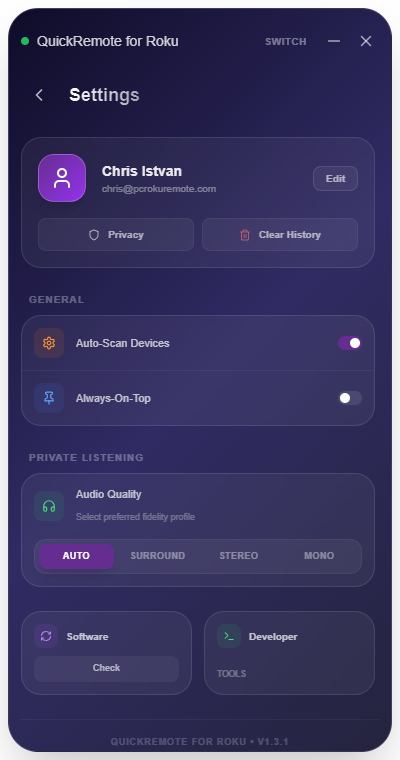
The new General setting allows you to disable the Always-On-Top window overlay lock.
💻 Case 1: Keeping Always-On-Top "ON" (The Active Controller)
Keeping the Always-On-Top lock enabled is ideal when your Roku TV is playing a high-attention media stream or during fast-paced scenarios. Because the remote is forced to stay on top of your screen, it remains immediately interactive, regardless of which window you click next.
Best For:
- Live Events & Breaking News: When watching a live sports game or breaking news broadcast, you may need to quickly mute the TV during repetitive commercial blocks, then instantly restore volume when the event resumes. Having the remote floating permanently on top means you can click Mute in a millisecond without ever search-clicking through your taskbar.
- Smart Clipboard Paste Loops: If you are casting a series of research links, movie titles, or credentials from your PC to a search field on Roku, keeping the remote window locked on top prevents it from hiding behind your browser. You can copy a string, click the remote's Smart Paste, and copy the next string with zero window-switching latency.
- Active Private Listening Calibration: When adjusting local headphone audio profiles or tweaking volume levels on late-night binging sessions, having the remote always visible makes audio dialing smooth and frictionless.
🛡️ Case 2: Toggling Always-On-Top "OFF" (The Stealth Background Remote)
Turning the Always-On-Top setting OFF allows QuickRemote to behave like a standard desktop application. When you click away to type in an editor, a spreadsheet, or an IDE, QuickRemote slides quietly into the background, clearing your screen of any visual obstructions.
Best For:
- Focus-Heavy Workflows (Coding, Writing, Accounting): When you are deep in a coding session or writing a complex report, any unexpected overlay on your screen can break your cognitive flow. With Always-On-Top disabled, the remote window rests behind your large IDE, only appearing when you explicitly call it from the taskbar or click it on your second monitor.
- Single-Monitor Laptops: If you are working from a 13-inch or 15-inch laptop screen, screen real estate is incredibly valuable. Even a narrow remote overlay can block paragraphs of text or code blocks. Disabling Always-On-Top lets you maximize your main browser or editor, keeping the desktop 100% clean and distraction-free.
- Dynamic Media Key Routing: QuickRemote now supports enhanced global media key routing. If you have Always-On-Top turned OFF and the remote is tucked behind your web browser, you can still use your physical keyboard's Play/Pause or Volume keys to control your TV. You get the benefit of network-routed controls without having a remote window cluttering your desktop!
⚙️ How to Customize Your Workspace Layout
Tailoring QuickRemote to your exact work layout is simple:
- Launch QuickRemote and click the Gear icon at the top right to open Settings.
- Locate the Always-On-Top switch under the General settings group.
- Turn it OFF if you want the remote to slide behind other windows when you click away.
- Turn it ON if you want the remote window to float permanently above all other apps on your screen.
Your preference is instantly saved. You can toggle this setting back and forth depending on whether you're in an active watching session or a focus-intensive working session.
Boost Your Desktop Multitasking Efficiency
Customize QuickRemote to fit your exact workspace layout. Experience the freedom of Always-On-Top control and keyboard routing for only $1.29 lifetime.
Get QuickRemote - Control Roku from Windows ($1.29)One-time lifetime license. Buy once, own forever. No subscriptions.